
“AD User Editor WebPart” for SharePoint 2010 & MOSS 2007
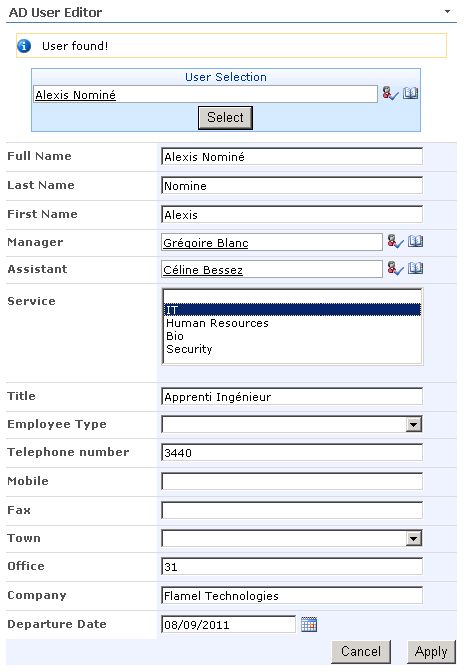
AD User Editor is a WebPart for SharePoint 2010 & MOSS 2007 to easily edit any user profile attribute in Active Directory trough an entirely customizable form.
- Nearly any Active Directory attribute can be edited trough this webpart
- Edit form entirely customizable via XML configuration (nothing "hard-coded")
- 9 field types:
- Photo (upload & resize),
- Read-Only,
- Single TextBox,
- Multiple TextBox,
- DropDownList (with preset values),
- ListBox (with preset values),
- People Picker,
- Date Picker,
- Checkboxes (with preset values, multivalued)
- Multi-domain compatible
- 2 edit modes: Self-service or user picker
- SharePoint "look & feel"
- Available for Sharepoint 2010 in multilanguage version (EN, FR, ES, NL)
- Still available for MOSS 2007 in English, Spanish and French (Without photo, checkboxes & multi-textbox fields)
Download AD User Editor (CodePlex)
Feel free to use the comment form to point out bugs, ask for features, or just say thanks 🙂
Installation (Sharepoint 2010)
- Download the wsp package to the server where SharePoint 2010 is installed.
- On the Start menu, click All Programs > Microsoft SharePoint 2010 Products > SharePoint 2010 Management Shell
- Type the following command:
Add-SPSolution -LiteralPath <SolutionPath>/ADUserEditorWebpart.wsp
- On the Central Administration Home page, click System Settings > Farm Management > Manage farm solutions.
- On the Solution Management page, click the "ADUserEditorWebpart.wsp", then click "Deploy Solution".
- Go the site collection where you installed it.
- Go to "Site Actions>Modify all parameters" and click on "Site Collection Features". If everything went well, you should find the feature you've just installed (AD User Editor Webpart).
- Push the button "Activate" in front of it.
- Create a new webpart page or modify the one you want and add the webpart "AD User Editor Webpart".
Installation (MOSS 2007)
- Download and unzip the installation package to the server where MOSS 2007 is installed.
- Open a console (Start menu>execute>cmd) and type in the following instructions:
cd <path to installer>
stsadm -o addsolution -filename NomineSharePointTools.wsp
- Go to your SharePoint "Central Administration" and click on the tab "Operations".
- There, you should click on the link named "Solution Management" under the title "Global Configuration". If everything went well, you should find the solution you've just installed (NomineSharePointTools.wsp).
- Click it, choose "Deploy Solution", select the Web Application you want it to be deployed to and then click "OK".
- Go the site collection where you installed it.
- Go to "Site Actions>Modify all parameters" and click on "Site Collection Features". If everything went well, you should find the feature you've just installed (Nomine SharePoint Tools).
- Push the button "Activate" in front of it.
- Create a new webpart page or modify the one you want and add the webpart "AD User Editor".
Configuration
AD Controller(s)
You can click the three dots to view it better (and maybe copy-paste it to your favourite text editor).
This is for the webpart to understand which domain controller it should connect in order to edit an user.
Here is an example configuration for 2 domains:
<domains>
   <domain name="MYFIRSTDOMAIN" path="LDAP://dc1.myfirstdomain.com/DC=myfirstdomain,DC=com" usr="MYFIRSTDOMAIN\adminuser1" pwd="xxxxxxxxx">
   <domain name="MYSECONDDOMAIN" path="LDAP://dc1.myseconddomain.com/DC=myseconddomain,DC=com" usr="MYSECONDDOMAIN\adminuser2" pwd="xxxxxxxxx">
</domains>
There are 4 parameters:
- name: It is the Netbios domain name (the netbios name is what you type before your login. eg: if you type MYFIRSTDOMAIN\user1, then the netbios name is MYFIRSTDOMAIN)
- path: It's the path to connect to the corresponding Active Directory controller (eg: "LDAP://dc1.myfirstdomain.com/DC=myfirstdomain,DC=com").
- usr: Username of an account that has Read/Write access to this Active Directory controller.
- pwd: Password of this account.
AD Properties
Here you can configure all the profile attributes that you want to appear in the edit form.
Here is an example configuration:
<properties>
   <property adname="displayName" name="Full Name" type="readonly" />
   <property adname="thumbnailPhoto" name="Photo" type="image" />
   <property adname="sn" name="Last Name" type="textbox" />
   <property adname="givenName" name="First Name" type="textbox" />
   <property adname="manager" name="Manager" type="person" />
   <property adname="assistant" name="Assistant" type="person" />
   <property adname="department" name="Service" type="listbox" values="IT;Human Resources;Bio;Security" />
   <property adname="title" name="Title" type="textbox" />
   <property adname="employeeType" name="Employee Type" type="dropdown" values="Technician,tech;Manager,mgr;Director,dir" />
   <property adname="telephoneNumber" name="Telephone number" type="textbox" />
   <property adname="otherTelephone" name="Other phone numbers" type="multitextbox" values="4" />
   <property adname="mobile" name="Mobile" type="textbox" />
   <property adname="facsimileTelephoneNumber" name="Fax" type="textbox" />
   <property adname="l" name="Town" type="dropdown" values="New-York;Washington" />
   <property adname="physicalDeliveryOfficeName" name="Office" type="textbox" />
   <property adname="company" name="Company" type="textbox" />
   <property adname="accountExpires" name="Departure Date" type="date" />
   <property adname="extensionCustomAttribute1" name="Certifications" type="checkboxlist" values="Cisco,CIS;Microsoft,MIC;Oracle,ORA" />
</properties>
A "property" field has 4 different properties:
- adname: The LDAP name of the attribute you want to modify.
(You can find a list of all LDAP attribute names on www.imibo.com) - name: The name you want to display in the edit form
- type: Which type you want the field to be:
- textbox: Simple text-box. Common way of editing things.
- dropdown: Dropdown list with a choice of predefined values.
- listbox: If a dropdown list would be too long, this is the best solution. It works as "dropdown".
- person: People Picker to select any people that SharePoint will find in Active Directory.
- date: Date Picker with calendar.
- readonly: Read only field
- photo: Picture upload for the "thumbnailPhoto" attribute (photo will be resized & cropped to 128x128px)
- checkboxlist: Checkboxes with a choice of predefined values.
- multitextbox: Multiple textboxes
- values:
- For ListBox, DropDownList and CheckBoxList:
values separated by semicolons(;)
OR
pair of displayed_title,inserted_value (comma (,) between title and value and semicolon(;) between items) - For MultiTextBox:
indicates the number of fields (ex: values="4" indicates that you want 4 textboxes)
- For ListBox, DropDownList and CheckBoxList:
Edit current user only
Check the box to activate "self-service mode": logged-in users can only edit their own profile.
Changelog
- 2.1.4
- Self service authentication change from "System.Security.Principal.WindowsIdentity.GetCurrent().Name" to "SPContext.Current.Web.CurrentUser.LoginName"
- Fix typo in default german and spanish default configuration causing errors with xml parsing
- 2.1.3
- NEW: German translation, thanks to Danuueel
- 2.1.2
- NEW: German translation, thanks to Danuueel
- 2.1.2
- NEW: Dutch translation, thanks to maarteng
- 2.1.1
- enhancement: displayName instead of distinguishedName (CN=xxx,DC=xxx) in read only fields like "manager"
- enhancement: read only field can now display multiple values
- bugfix: no more exception trying to display errors (sic)
- enhancement: message displayed when webpart hasn't yet been configured
- bugfix: having multiple multitextbox fields is now possible
- 2.1.0
- NEW: image field type (image upload resizing & cropping to 128x128px, jpg only)
- NEW: new field types for multivalued attributes: checkboxlist, multi-textbox
- 2.0.1
- NEW: compatibility with SP2010 "claims based authentication" (strips 'i:0#.w|' from the username)
- enhancement: meaningful error message if required domain missing from xml config (instead of keyNotFoundException)
- enhancement: auto uppercase domain NetBios name (-> less config errors)
- enhancement: better "person field" handling ('DOMAIN\username' instead of just 'username' when filling the field)
- bugfix: edit form now with the current theme style
- 2.0.0
- NEW: Now for SharePoint 2010 !
- NEW: Multilingual: English, French and Spanish.
- 1.1.0
- NEW: "readonly" field type added
- bugfix: no more editing config in personal view
- enhancement: no more need to add empty "values" attribute in xml config
- enhancement: no more "user found" message in self-service mode
- 1.0.1
- bugfix: solved issue with "person" field type
- 1.0.0
- Initial release
Sources
I picked a lot of infos and get inspirated by some bits of source code googling the web. My most important sources of inspiration and help were:
- ActiveDirectoryTools of Burke Holland
- SharePoint solution created by the STSDEV utility
- Right way of coding webpart on Ishai Sagi's blog
- Sharepoint Web Controls (User picker, Date picker) from Karine Bosch's blog
- Photo resizing & cropping from British Developer
Comments (43)
pettsen
| #
Great job
Reply
mlem
| #
Great tool, Alexis. Is there a way to make a field read-only?
Reply
Mansoor
| #
Hi Alex,
its,Great Now i retrieve user details without any errors. Thanks a lot
In my project ,I have to retrieve the e-mail id ,country,department from AD.
Can you please tell me where i have to change the code , otherwise send me the code,its very urgent required in my project.
This is last request ..Plz Plz do the needful.
Regards,
Mansoor
Reply
Ivo Markov
| #
Hi, great toll but one real nice option is missing. There is no way to pass the current logged in in MOSS user’s credentials to the AD. It’ll be very nice to have that as setting administrator account into the WebPart configuration is not an option in most companies. Anyway, user by default can change some of his attributes in AD, and if passing his credentials automatically is possible this tool can be useful in more scenarios.
It’s pretty simple to do it in WebApp, I think can be done in WebPart.
Reply
Tom J
| #
Excellent web part. See link for configuration gotchas I found. Main thing is to make the ‘Edit current user only’ property non-editable when modifying the web part in personal mode.
Reply
Steev
| #
Hello, I am having some trouble getting the WebPart to work.
I have installed it successfully and added it to a MOSS page, but I get an error.
I seem to get the same error whether I enter my DC creds or not.
The error is
“System.Collections.Generic.KeyNotFoundException: The given key was not present in the dictionary. at System.ThrowHelper.ThrowKeyNotFoundException() at System.Collections.Generic.Dictionary`2.get_Item(TKey key) at NomineSharePointTools.ADUserEditor.findFromAccountName(String Name) at NomineSharePointTools.ADUserEditor.selectUser”
Fairly noob at this so it’s probably something obvious I am missing. I would appreciate any help you can give me as the WebPart is exactly what I am looking for.
Thanks.
Steev.
Reply
alexis
| #
Steev,
The issue is related to the xml config in the webpart:
check here for more info: http://nominesptools.codeplex.com/Thread/View.aspx?ThreadId=69492
Reply
Marcelo Estrada
| #
Hi Alexis:
I have sucessfully configured the AD User Editor Webpart, however if I try to get an account from the PersonPicker and then edit it it launches the following error message:
System.DirectoryServices.DirectoryServicesCOMException (0x8007202B): A referral was returned from the server. at System.DirectoryServices.DirectoryEntry.Bind(Boolean throwIfFail) at System.DirectoryServices.DirectoryEntry.Bind() at System.DirectoryServices.DirectoryEntry.get_AdsObject() at System.DirectoryServices.DirectorySearcher.FindAll(Boolean findMoreThanOne) at System.DirectoryServices.DirectorySearcher.FindOne() at NomineSharePointTools.ADUserEditor.findFromAccountName(String Name) at NomineSharePointTools.ADUserEditor.selectUser()
Any suggestion or possible troubleshooting for solving this issue would be highly appreciated!!
BTW, Excellent Webpart, I´m really excited to try it on, please help!!
Reply
alexis
| #
Marcelo,
It could be a problem of credentials.
Please check that the login you put in the xml config is like this: “DOMAIN\username”
Reply
Maarten
| #
Hi Alexis,
Great feature, I really hope you can help me to get it to work cause these selfservice web parts are really handy.
I installed everything correctly no problems their. Only when I’m configuring the XML I get an error that I’m redirected to the Web part maintenance page and forced to remove it.
Below my XML, I’m just not sure about the LDAP path and all? My domain is named “PRESSTO” and just for test I used the Administrator account.
Maybe you can clarify for me what I have to change to make this work.
Thanks in advanced,
Maarten
🙂
Reply
Mansoor
| #
Hi alex,
Can we make readonly field,and can we make mandatory field ?
If yes, please tell its very need in my project.
regards
Mansoor
Reply
George
| #
Hi, I have followed (I think) the instructions, but got this error when I hit submit. Until this point everything was great 🙂 Any ideas what I did wrong?
System.Collections.Generic.KeyNotFoundException: The given key was not present in the dictionary. at System.ThrowHelper.ThrowKeyNotFoundException() at System.Collections.Generic.Dictionary`2.get_Item(TKey key) at NomineSharePointTools.ADUserEditor.findFromAccountName(String Name) at NomineSharePointTools.ADUserEditor.selectUser()
Reply
alexis
| #
It’s a problem related to the domains configuration. If the login of the user you’re trying to modify is DOMAIN1/user1, then your domain config should begin like <domain name=”DOMAIN1″ …
You can have more infos here.
Reply
unknown
| #
Awesome webpart…
What would the email field in AD be?
Reply
unknown
| #
Awesome tool… 😀
We love this tool.
Couple of suggestions:
1) Disabled or View Only Fields
2) Required Fields
3) pwdLastSet Attribute Date/Time Calculation
4) Hide “User found!” in Self Service mode
But keep up the great work! This is just sweet!
Reply
unknown
| #
I am having the same error as Steev
The error is
“System.Collections.Generic.KeyNotFoundException: The given key was not present in the dictionary. at System.ThrowHelper.ThrowKeyNotFoundException() at System.Collections.Generic.Dictionary`2.get_Item(TKey key) at NomineSharePointTools.ADUserEditor.findFromAccountName(String Name) at NomineSharePointTools.ADUserEditor.selectUser”
Fairly noob at this so it’s probably something obvious I am missing. I would appreciate any help you can give me as the WebPart is exactly what I am looking for.
Reply
alexis
| #
Hi,
I should implement more understandable error messages. Sorry for that…
If your username is like MYDOMAIN\myusername, then you should write something like
Reply
unknown
| #
Very good tool, thanks Alexis. Do you have any others, like password change, or allowing managers to add users in their OU? Sharepoint user administration is dismal.
Reply
BGM
| #
Hello! I installed this and it works great! My only problem is that, as I am using it in sharepoint server 2010 under the v4 master, the input boxes are all different sizes. Do you know how to remedy this? If not, I am going to hack at it until I figure it out.
Reply
BGM
| #
Hey, I fixed it! 😆 Here is the css:
/*fixes for the user-account editor*/
div#ctl00_m_g_d8ec5038_489e_4107_b66a_cd3af666b3cd table.ms-formtable tbody tr td.ms-formbody input,
div#ctl00_m_g_d8ec5038_489e_4107_b66a_cd3af666b3cd table.ms-formtable tbody tr td.ms-formbody select
{
background-color: #FFFFCC;
width: 200px;
}
/*realign the buttons*/
div#ctl00_m_g_d8ec5038_489e_4107_b66a_cd3af666b3cd table.ms-formtable tbody tr.ms-formbody td{
text-align: left;
}
Reply
Sebastian Hodapp
| #
Hey,
great work. What do I have to do to make it work with FBA only?
Thanks,
Sebastian
Reply
AD User Editor WebPart 2.1.1 - Nomine Web Creations
| #
[…] AD User Editor WebPart […]
Reply
Mel Davies
| #
Hi is is possible to add descriptive text after the type field. This would be used to help users complete the informtion.
Reply
Alexis Nominé
| #
Good idea Mel. It’s going to be in the next version.
Cheers
Reply
Amal
| #
hello there,the solution is amazing,It was installed and configuredit easily with no errors.
It even worked and edited the users,the point is i want to remove some of the fields in the webpart,as we don’t actually need to let the user edit all this ,but when i remove some of the properties in the Webpart configuration.
the below error is shown
System.Xml.XmlException: Unexpected end of file has occurred. The following elements are not closed: properties. Line 1, position 1228. at System.Xml.XmlTextReaderImpl.Throw(Exception e) at System.Xml.XmlTextReaderImpl.ThrowUnclosedElements() at System.Xml.XmlTextReaderImpl.ParseElementContent() at ADUserEditorWebpart.ADUserEditorWebpart.Utilities.getUserPropertiesFromXML(String XML) at ADUserEditorWebpart.ADUserEditorWebpart.ADUserEditorWebpart.CreateChildControls()
how can i edit the displayed properties without getting error.
appreciate your help
Reply
Alexis Nominé
| #
It looks like you’ve forgotten the last closing ““. You can post your code here if you want me to have a look.
Reply
Amal
| #
Thanksss Alexis, u r right. closing ” was missing .
May i ask what if I want to reate a nested dropdown list?is it applicable?
if yes,how the the syntax will look like.
really appreciate your help.
Reply
Alexis Nominé
| #
I’m afraid there’s no nested dropdown option for now.
Four which use would you need it?
Reply
Amal
| #
Thanks Alexis for this webpart,its doing agreat job in a project iam working on.
regarding the nested dropdown ,I’ve the following Scenario: in the title field,i gotta restrict the values that users can enter so i had to make it a dropdownlist,but titles in my organization are more than 800 ,so i thought it will look much better if titles were listed each under its coresponding Department ,and departments are listed under sectors,which will result in only abt 10 sectors.
but nevermind,it seems users are not irritated from the 800 list items..they are using it and already r updating thier info this week.
Thanks again
Reply
Alexis Nominé
| #
That’s in my todo list for a future update 🙂
Reply
Pawan
| #
Hi Alexis,
I am trying make some field readonly to restrict user from editing it but when I set the type to readonly it doesn’t display anything. Do I have to make any other settings for that? I am using it in sharepoint 2007.
Reply
Alexis Nominé
| #
Could you post here (or via the contact form) your xml config so I can have a look?
Reply
Pawan
| #
Hi Alexis,
I have sent the xml to you via the contact form.
thanks
Reply
Jason
| #
Does this webpart work in an encrypted LDAP environment? If so, what extra syntax do I need to add to make it work?
Thank you!
Reply
Alexis Nominé
| #
I’ve never worked with “encrypted LDAP” but I guess you can try to use this kind of address when configuring the webpart:
LDAPS://dc1.myfirstdomain.com/DC=myfirstdomain,DC=com
Reply
Jason
| #
Yep, we already tried that before I messaged you. No good.
Reply
Alexis Nominé
| #
I’ve investigated a bit and I think it won’t work with the current webpart.
It doesn’t seem trivial to implement, so i’m afraid I won’t be able to do it as I have a lot of work on other projects for now.
The source code is on codeplex, so if you want to hand it over to someone who can implement it, I’d be happy to put it online if you want to share your solution with others.
Reply
Olivier V
| #
Hi,
I’ve got an arror when using a complex password.
Some characters seems to not work (our password have the signs : ! @ & )
When using another admin log / password, it works great.
But It’s a great tool !! thanks a lot !
——-
Bonjour,
Nous rencontrons une erreur de parsing quand nous utilisons un mot de passe contenant un des signes suivants ! @ & (il n’y en a peut être qu’un qui pose problème.)
Bravo et merci en tout cas pour cet outil qui est complet et reste simple à mettre en oeuvre !
Reply
Alexis Nominé
| #
Hi Olivier,
I think it’s because the character & must be encoded in xml.
Try to write & instead of & and it should work after this change.
Reply
Quinten Marais
| #
Hi Alexi,
Thanks for an awesome App !!
Is there any way to set two ADname properties using one input box?
Reply
Alexis Nominé
| #
Hi Quinten,
I’m not sure what you’d like to achieve. Could you describe it with more details?
Reply
Quinten Marais
| #
Hi,
For example, there is a Job Title and Description fields,
The description fields makes it easier for admins in the AD Users And Computer console, where Job title pulls in to Exchange and populate the corporate signature.
So when we manually edit an entry, we normally change both.
Reply
Alexis Nominé
| #
OK,now I see 🙂 It’s not possible currently and would be a bit complicated to develop (using tokens for replacement or something else …)
As I don’t have much time anymore to add functionalities to this webpart, I’m afraid it can’t be done anytime soon.
But you’re welcome to download the source code from here and have a developer make the required changes : https://nominesptools.codeplex.com/SourceControl/latest
Cheers,
Reply